How to Spot Phishing Emails Before You Click: Visual Cues and Red Flags for Personal Data Protection
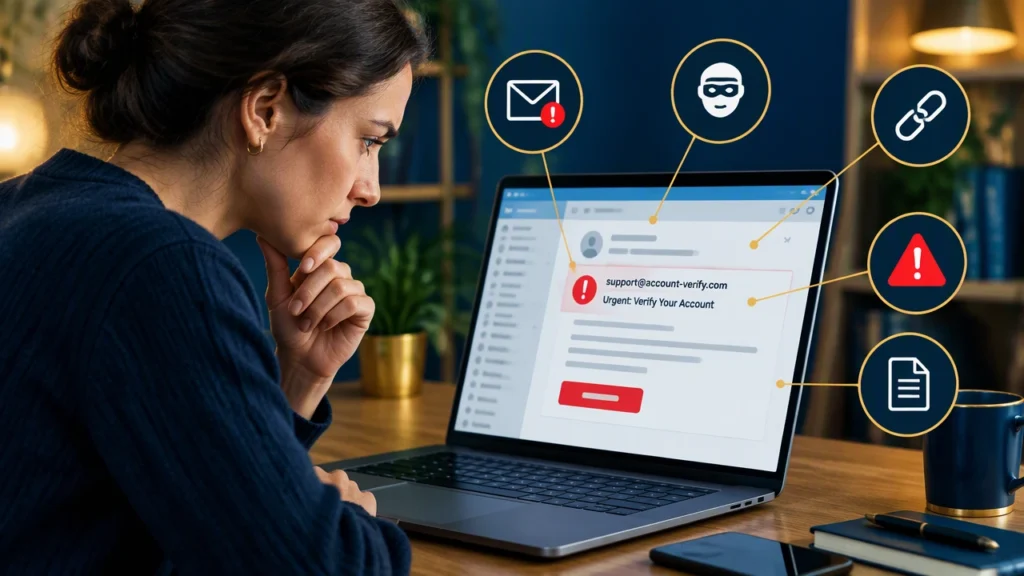
Personal data protection starts with attention to detail in your inbox. Phishing emails remain one of the most common ways attackers steal passwords, session tokens, and sensitive information. Learning how to spot phishing emails before you click is not about paranoia; it is about building a calm, repeatable process that helps you recognize patterns and act safely.
The good news is that most phishing messages leave visual clues. When you know what to look for, you can often identify a fraudulent email in seconds, without opening attachments or following links. Below is a practical guide to the cues and red flags that matter most, along with simple steps you can use every day.
Why phishing still works
Phishing works because it exploits urgency, curiosity, and trust. Attackers mimic brands, colleagues, or services you rely on, hoping you will act before thinking. Modern phishing kits are polished and mobile-friendly, which makes them more convincing. However, even high-quality scams tend to slip up on small details. Training your eye to catch those details is one of the most effective habits for everyday cybersecurity.
Start with the sender address
The sender field is the first place to check. Attackers can display any name they want, but the actual email address often reveals the truth.
- Look beyond the display name. The friendly name can say “Support” or “Payroll,” but the address may belong to a free email provider or an unrelated domain.
- Watch for subtle misspellings. Domains like paypa1.com or microsft.com are designed to look right at a glance.
- Check for extra words or subdomains. A URL such as login.example.com.secure-update.net is not the same as login.example.com.
- Be cautious with lookalike characters. Some phishing addresses use characters from other alphabets that visually resemble Latin letters.
If the sender address does not match the organization it claims to be from, treat the message as suspicious regardless of how professional it looks.
Inspect the links before you click
Links are the main trap in credential-stealing emails. You do not need to follow a link to evaluate it.
- Hover or long-press to preview. On desktop, hover over the link to see the real destination. On mobile, long-press to preview without opening.
- Compare the domain to the real site. If the email claims to be from your bank, the preview should show the bank’s official domain, not a different one.
- Look for HTTPS alone is not proof. A padlock means the connection is encrypted, not that the site is legitimate. Attackers use HTTPS too.
- Watch for redirects and shortened URLs. If the preview shows a URL shortener or an unfamiliar redirect chain, treat it with caution.
If anything looks off, do not click. Instead, open a new browser window and go to the site directly by typing the address or using a trusted bookmark.
Read the message for pressure and oddities
Phishing emails often rely on emotion to push quick action. The language itself can be a strong signal.
- Artificial urgency. Phrases like “act now,” “your account will be locked,” or “final notice” are common.
- Threats or penalties. Messages that warn of legal action, lost funds, or service suspension aim to make you react without thinking.
- Unusual requests. Any email that asks for passwords, one-time codes, full card numbers, or security question answers is suspicious.
- Generic greetings. “Dear user” or “Dear customer” can be fine in legitimate newsletters, but combined with urgency it is a warning sign.
Legitimate organizations rarely ask for sensitive credentials over email. If the request is unusual, verify it through an official channel.
Check the design, branding, and tone
Attackers invest in branding, but small visual mistakes often remain.
- Low-quality logos or inconsistent spacing. Blurry images, misaligned elements, or odd font choices suggest a copy.
- Mixing brand styles. If the colors or tone do not match what you normally receive from that company, be cautious.
- Odd capitalization and punctuation. Overuse of exclamation marks, random capital letters, or strange formatting are common in scam templates.
- Too-perfect or too-messy layout. Both extremes can indicate a fake. Some phishing emails are overly polished, while others look hastily assembled.
When in doubt, compare the message to a genuine email from the same sender. The differences usually become obvious side by side.
Examine attachments with care
Attachments are a common route for malware and credential-harvesting pages.
- Unexpected files are risky. Be wary of invoices, receipts, or documents you did not expect.
- Watch for dangerous file types. Files ending in .html, .htm, .svg, .iso, .zip, .one, or Office files with macros can be harmful.
- Be skeptical of password-protected archives. Attackers use them to bypass security scanners.
- Use your organization’s tools. If you are at work, follow your security team’s guidance for handling attachments.
If you did not request the file and the message pressures you to open it quickly, stop and verify separately.
Look for inconsistencies and mixed signals
Phishing often breaks its own story. Small contradictions can reveal the scam.
- Brand name in the logo, different name in the signature. Mismatches between visible branding and sign-off details are a red flag.
- Reply-to address that does not match the sender. If the reply-to points to a free email account or unrelated domain, be suspicious.
- Internal metadata oddities. Some email clients show technical headers. If you see strange routing or authentication failures, treat the message carefully.
Consistency matters. Legitimate senders usually maintain uniform branding, domains, and contact details.
Use simple verification habits
When something feels off, pause and verify. These steps are quick and effective.
- Open a new tab and go to the official site. Do not use links from the email. Type the address yourself or use a bookmark.
- Contact the sender through a known channel. Use a phone number or website you already trust, not one provided in the suspicious email.
- Search for the exact subject line. Scams are often mass-sent. You may find warnings from others about the same message.
- Check your account directly. If the email claims there is a problem, log in through the official site to see if any alerts actually exist.
Verification takes only a minute and removes the guesswork.
Strengthen your defenses with practical settings
Good settings reduce exposure and make phishing easier to spot.
- Enable multi-factor authentication. Even if a phisher gets your password, MFA can block access.
- Use a password manager. A password manager will not autofill on a fake site because the domain will not match.
- Keep your email client updated. Updates often include improved spam and phishing protections.
- Turn on external content blocking. Many email apps can block images and remote content by default, which limits tracking and some phishing tactics.
These controls work together to lower risk and give you more time to notice warning signs.
What to do if you clicked or replied
Mistakes happen. The key is to limit the damage quickly.
- Change your password immediately. Use the official site, not a link from the email.
- Revoke active sessions if the service allows it. This forces attackers out of any account they may have accessed.
- Enable or reset multi-factor authentication. If you shared a code, rotate your MFA method if possible.
- Monitor your account for unusual activity. Check for new devices, forwarding rules, or unauthorized changes.
- Report the message. Use your email provider’s reporting tools and notify your IT or security team if it is a work account.
Fast action reduces the window attackers have to exploit your information.
Build a calm routine
The most reliable protection is a steady habit. Before you act on any message, take a breath and run a short checklist: verify the sender address, preview links, read for urgency, check for design inconsistencies, and avoid unexpected attachments. If anything does not add up, verify through a trusted, separate channel.
By practicing these steps regularly, you will get faster at recognizing the visual cues and red flags in your inbox. That is how to spot phishing emails before you click, and it is one of the most practical ways to strengthen personal data protection in everyday life.