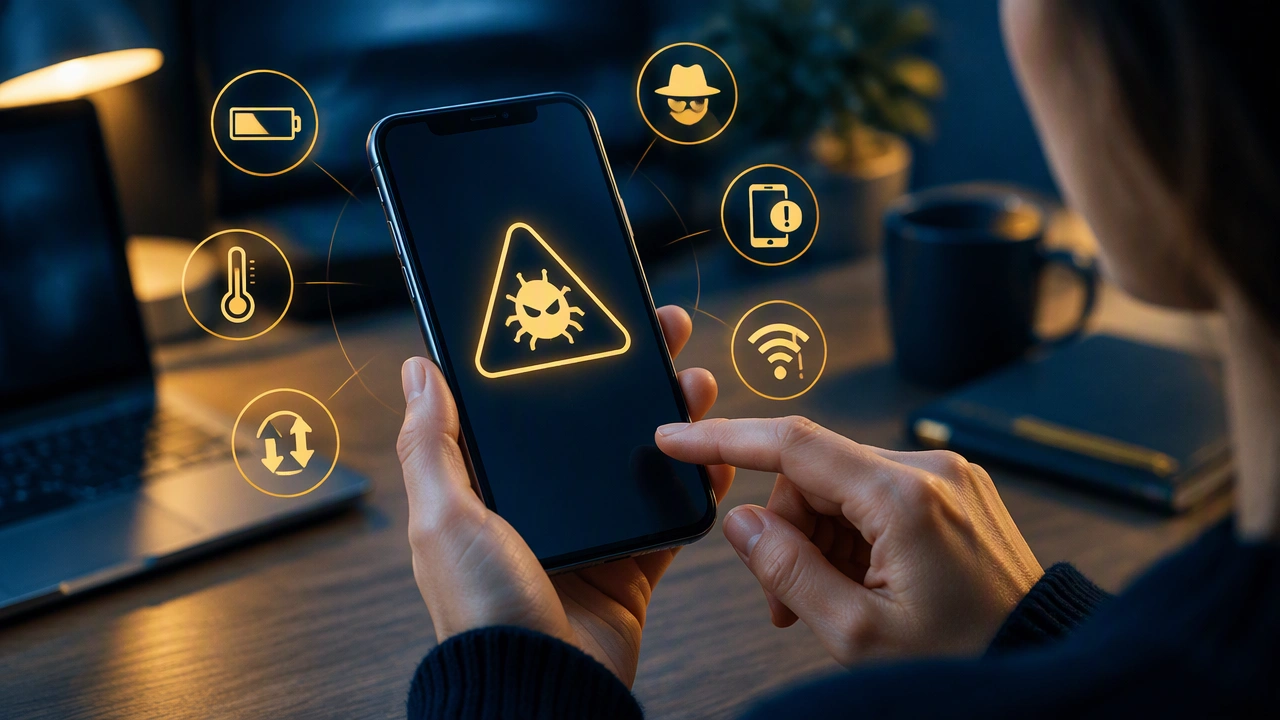
Warning Indicators That Suggest Your Mobile Device May Be Compromised by Malicious Software
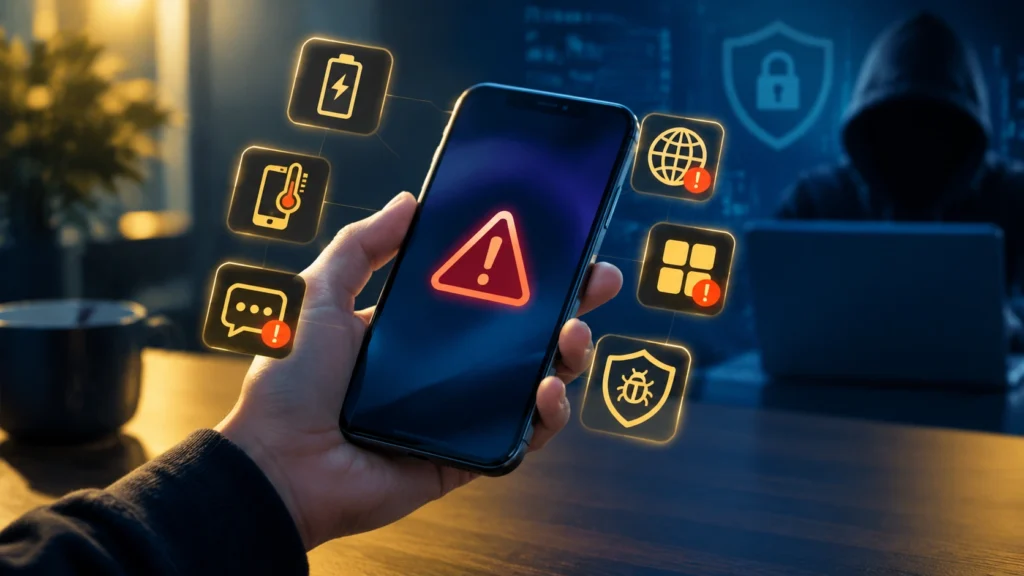
Your smartphone is the center of your personal and professional life. It stores private messages, photos, location history, banking apps, passwords, and health data. Because so much sensitive information lives on one device, personal data protection depends heavily on keeping that device clean and secure. When malicious software quietly runs in the background, it can collect this information without your knowledge and share it with others. Understanding the early warning indicators can help you act before damage spreads.
One of the more invasive forms of mobile malware is spyware, software designed to monitor your activity covertly. Unlike a visible virus that might lock your screen, spyware tries to stay hidden for as long as possible. Learning the common signs that your smartphone may have spyware will help you recognize when everyday glitches might point to a deeper security problem.
What Is Mobile Spyware and Why Is It a Privacy Risk?
Spyware is a category of malicious software that secretly observes what you do on your device. Once installed, it can run silently in the background and may be able to access call logs, text messages, emails, photos, browsing history, keystrokes, and location data. Some variants can activate the microphone or camera, log what you type, or copy files to a remote server.
Installation often happens without obvious consent. Common paths include:
- Phishing links and fake apps: Tapping a link in a text message, email, or social media ad that installs an app from outside an official app store.
- Compromised legitimate apps: A once-safe app that was updated with malicious code after being compromised.
- Physical access: Someone with hands-on access to your unlocked phone installing software manually.
- Exploits and system vulnerabilities: Outdated operating systems that have not been patched against known flaws.
Because spyware operates quietly, you may not see a clear alert. Instead, you will notice indirect symptoms caused by the extra work the phone is doing without your permission.
Common Signs That Your Smartphone May Have Spyware
No single symptom proves you have spyware, but several of these issues appearing together should raise concern. Consider them as patterns rather than isolated incidents.
1. Rapid and Unexplained Battery Drain
All batteries degrade over time, but a sudden change is worth investigating. Spyware must run continuously to monitor activity and transmit data, which consumes power even when you are not actively using the phone. If your battery percentage drops noticeably faster than usual, the phone feels warm while idle, or you need to charge far more often despite unchanged usage, background activity could be the cause. Check your battery usage settings to see which apps consume the most energy. An unfamiliar or generic-sounding app near the top of the list deserves closer attention.
2. Significant Increase in Data Usage
Spyware regularly sends collected information to an external server, which uses mobile data or Wi-Fi. If your data usage spikes without streaming more video, uploading files, or using a hotspot, hidden transmissions may be occurring. Review your monthly data breakdown in system settings. Look for unknown apps transferring large amounts of background data or a sharp increase in overall usage that does not match your behavior.
3. Device Overheating When Idle
A phone that stays hot long after you stop using it is working harder than it should. Intensive background monitoring, location tracking, and constant network communication generate heat. Occasional warmth while charging or gaming is normal. Persistent overheating while the screen is off and no intensive apps are open is not. If this happens repeatedly, especially alongside battery and data symptoms, consider it a potential red flag.
4. Slower Performance, Freezes, and Unexpected Reboots
Extra background processes compete for processor and memory resources. You may notice apps taking longer to open, the keyboard lagging, the interface stuttering, or the system restarting on its own. While performance naturally declines with age or low storage, a sudden and sustained slowdown after installing a new app or clicking a suspicious link warrants a security check. Do not ignore frequent crashes either. Some spyware interferes with system stability when it tries to hide from detection.
5. Unfamiliar Apps, Settings Changes, or Permissions
Check your app list carefully, including inside folders and in the full app drawer or app library. Spyware may appear as a generic entry such as Device Manager, System Update Service, or Play Services with a slightly off icon. Other signs include new browser toolbars, a changed default search engine, enabled accessibility services you did not turn on, or permissions granted to unknown apps for microphone, camera, location, and messages. Review accessibility, device admin, and usage access permissions in settings. Legitimate apps rarely need all of those privileges at once.
6. Strange Messages, Pop-ups, and Intrusive Behavior
If contacts report receiving texts or messages from you that you did not send, your account may be abused to spread links. Other clues include pop-ups that appear even when the browser is closed, new tabs opening by themselves, audio or video recordings you did not create, or the camera and microphone indicator dots appearing unexpectedly. Some spyware also intercepts one-time codes, so watch for delayed or missing authentication messages.
7. Unusual Activity on Accounts Linked to Your Phone
When spyware captures passwords or authentication tokens, you may see logins from unknown locations, password-reset emails you did not request, or changes to security settings on email, banking, or cloud accounts. If multi-factor authentication prompts arrive when you are not logging in, someone may have your credentials. This type of activity suggests that information collected from your device is already being used elsewhere.
Signs That Are Often Misinterpreted
Not every glitch indicates spyware, and rushing to conclusions can cause unnecessary stress. Many symptoms have benign explanations. Context matters more than any single event.
- Normal battery aging: After two to three years, batteries naturally hold less charge. Compare current behavior to recent weeks, not to when the phone was new.
- Software updates: A fresh operating system update can temporarily increase battery use and heat while files are reindexed.
- Poor signal: A weak cellular signal makes the phone work harder to stay connected, which drains power and causes warmth.
- Noisy apps: Legitimate apps with heavy background refresh, location tracking, or auto-play video can mimic spyware symptoms.
The key difference is persistence and correlation. A single slow day is normal. Several symptoms appearing after the same event, such as sideloading an app or clicking an unknown link, merit a deeper review.
What to Do If You Suspect Spyware
Stay calm and avoid alerting a potential observer before you have secured your accounts. If you believe someone close to you may have installed monitoring software, consider safety planning and seek support from a trusted resource before taking steps that could notify them.
- Update the operating system: Install the latest security patches for iOS or Android to close known vulnerabilities.
- Review and remove suspicious apps: Uninstall apps you do not recognize. On Android, revoke device admin and accessibility access first if uninstall is blocked.
- Check app permissions: Disable microphone, camera, location, and SMS permissions for apps that do not clearly need them.
- Run a scan: Use the built-in security scan or a reputable mobile security tool from an official app store. Avoid downloading new tools from unknown sites.
- Secure your accounts from a different device: Change important passwords, especially for email, banking, and cloud storage, and enable multi-factor authentication using an authenticator app where possible.
- Backup and reset if needed: If suspicious behavior continues after cleanup, back up essential data and perform a factory reset using official instructions. Reinstall only trusted apps afterwards.
- Seek professional help: If the device is used for work or you handle highly sensitive data, consult your IT support team or a qualified technician.
How to Strengthen Everyday Cybersecurity Going Forward
Prevention is more effective than removal. Small habits improve privacy and reduce the chance of future infection.
- Keep software current: Enable automatic updates for the operating system and apps, and do not ignore security prompts.
- Use official sources: Install apps only from the official app store, read reviews, check publisher names, and avoid pirated or modified apps.
- Be selective with permissions: Grant access to location, contacts, or files only when directly relevant to an app’s function, and set permissions to allow only while using the app when possible.
- Strengthen authentication: Use a strong screen lock, a unique PIN or password, biometric unlock, and multi-factor authentication for key accounts.
- Think before tapping: Treat urgent messages about package delivery, prize winnings, or account suspensions with skepticism. Verify the sender through an official website or app instead of a link.
- Review settings regularly: Once a month, review installed apps, permission grants, and connected devices for accounts that support remote management features.
Your phone will not always warn you clearly when something is wrong, but it does leave clues. By recognizing the early warning indicators, checking for patterns rather than single events, and responding with careful, well-informed steps, you can protect your privacy, limit data exposure, and keep your everyday digital life more secure. If doubt remains after basic checks, a clean reset and a review of account security are often the most reliable way to restore confidence in your device.